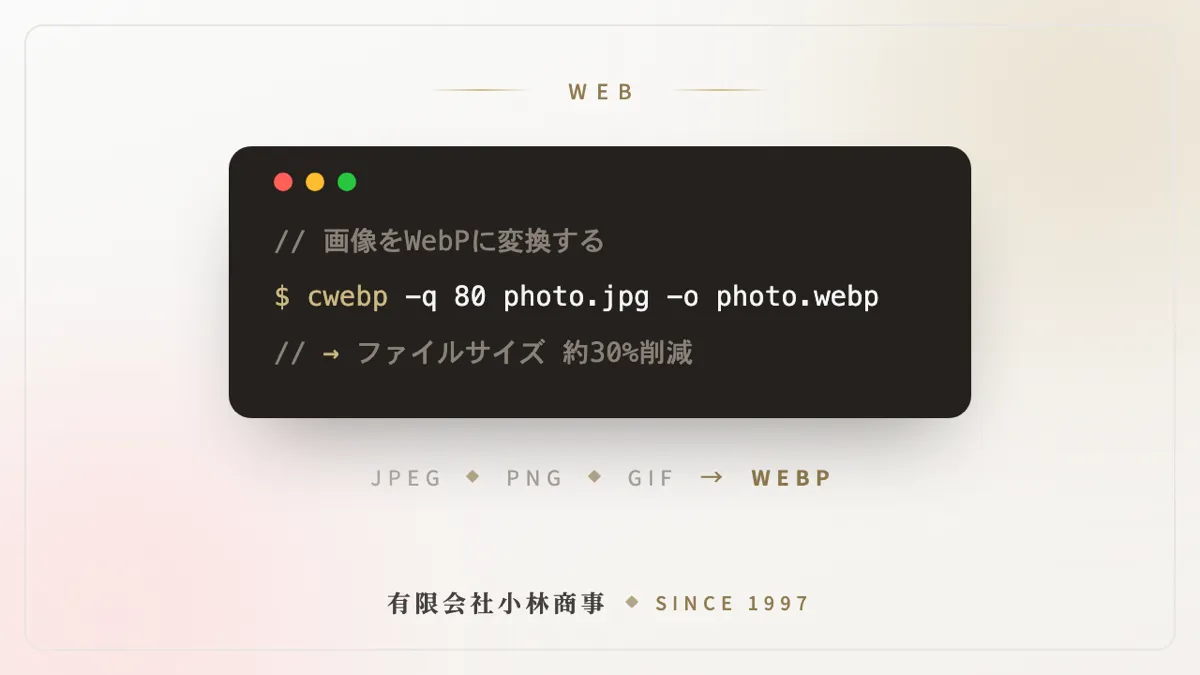
When looking into ways to improve a website’s loading speed, the image format “WebP” almost always comes up as a candidate. This article gathers everything you need to make an adoption decision: an overview of WebP, the benefits and drawbacks of adopting it, browser support, and how to preserve image quality.
First, try it on your own image
The quickest way to appreciate what WebP does is to actually convert an image. With “Squoosh,” a free tool provided by Google, you simply drag and drop an image into the browser; you can compare the before and after appearance with a slider, and the reduced file size is displayed on the spot. No installation or registration is required, so before reading on, do try it once to see how many percent lighter your own photos become.
Overview of WebP
WebP is an image format developed and released by Google in 2010. The name combines “Web” and “Picture,” and as the name suggests, it is optimized for displaying images on the Web. The file extension is “.webp” and the MIME type is “image/webp.” In 2024, the specification was formally standardized by the IETF as RFC 9649 [5].
It was designed to replace the traditional JPEG, PNG, and GIF formats, and combines the following features in a single format [1][4].
- Supports both lossy compression (equivalent to JPEG) and lossless compression (equivalent to PNG)
- Supports transparency (alpha channel) — enables background transparency like PNG
- Supports animation — can be used as a replacement for GIF
In other words, the functions that previously required choosing between JPEG, PNG, and GIF depending on the use case can all be covered by WebP alone.
Benefits of adoption
1. Substantial reduction in file size
WebP’s greatest benefit is its small file size. According to Google’s official documentation, lossless compression is 26% smaller than PNG, and lossy compression is 25–34% smaller than JPEG at an equivalent image quality (SSIM quality metric) [1]. These figures are based on the comparison studies of compression efficiency that Google has published (WebP Compression Study / Lossless and Alpha Study) [2][3].
Because images make up the bulk of a web page’s data transfer, this reduction translates directly into improved loading speed.
2. Better user experience and SEO through faster display
Page loading speed also affects Google’s search evaluation metrics (Core Web Vitals). Google’s PageSpeed Insights presents “Serve images in next-gen formats” as an improvement item, and recommends the use of WebP. Faster display also contributes to a lower bounce rate and a higher conversion rate.
3. Reduced communication costs and server load
Because file sizes are smaller, server transfer volumes and CDN delivery costs can also be reduced. The higher a site’s traffic, the greater the effect.
Drawbacks and points to note
1. It cannot be displayed in some older environments
The major browsers already support it, but it cannot be displayed in older environments such as Safari 13 and earlier (iOS/macOS before 2020) or the discontinued Internet Explorer. Caution is needed in cases where a legacy environment is fixed, such as an in-house corporate system.
2. Some editing software and services do not support it
Some image editing software and social media or external services cannot handle WebP directly. Considering the exchange of source materials and secondary use, the safe approach is to keep the originals in JPEG/PNG and use WebP as the conversion target for delivery.
3. Conversion requires some effort
You need to set up a mechanism for batch-converting existing images or automatically converting them on upload. That said, using the tools and CMS plugins described later can make this burden quite small.
4. Not suited to re-editing lossy-compressed images
Repeatedly editing and re-saving a lossy-compressed WebP degrades the image quality over time. On this point, too, keeping the original data is important.
Browser support (as of 2026)
According to Google’s official documentation and MDN Web Docs, WebP is natively supported in all major browsers [1][4].
| Browser | Support status |
|---|---|
| Google Chrome | Supported |
| Microsoft Edge | Supported |
| Firefox | Supported |
| Safari | Supported (version 14 and later, from 2020) |
| Opera | Supported |
| Internet Explorer | Not supported (support ended in 2022) |
According to the statistics from the browser support database “Can I use,” WebP can be displayed in roughly 96–97% of the world’s viewing environments [6]. The environments where it is not supported are limited to a very small number of legacy environments, such as IE, Safari on old iOS/macOS devices, and old Android stock browsers from before Chrome appeared.
Fallback for unsupported environments
If you want to accommodate the remaining few percent of environments as well, you can serve JPEG/PNG selectively using the HTML <picture> tag. This technique is a standard implementation recommended in MDN’s reference as well [7].
<picture>
  <source srcset="image.webp" type="image/webp">
  <img src="image.jpg" alt="Image description">
</picture>
WebP-supporting browsers are shown the WebP, while unsupporting browsers are automatically shown the JPEG. In addition, Google’s official FAQ introduces methods such as serving selectively by examining the Accept header on the server side (content negotiation) [8].
To what extent can image quality be preserved?
A high compression ratio does not mean poor image quality. According to Google’s official FAQ, WebP’s lossy compression achieves an average compression ratio 30% higher than JPEG without harming image quality [8]. As the basis for this, Google has published the results of large-scale comparison studies using image quality metrics (SSIM/PSNR) [2].
The points for preserving quality are as follows.
- Adjusting the quality parameter: You can specify quality (0–100) during conversion. For photographs, a quality of around 75–85 can often reduce size substantially while keeping the visible degradation almost imperceptible
- Visual check before and after conversion: Using “Squoosh,” introduced at the beginning, you can compare the before and after images side by side while adjusting the balance between quality and compression ratio
- Choose lossless compression for logos and diagrams: For images with a lot of text or solid fills, using zero-degradation lossless compression (a PNG replacement) preserves image quality completely
- Measuring the effect numerically: After adoption, confirm the improvement in loading speed numerically with tools such as PageSpeed Insights
Adoption methods and conversion tools
- cwebp / dwebp: Google’s official command-line tools. Bundled with libwebp (the reference implementation), they are suited to batch-converting large numbers of images [1]
- Squoosh (provided by Google): a free tool that lets you convert while checking quality in the browser
- WordPress plugins: such as “Converter for Media” and “EWWW Image Optimizer.” They automatically convert on upload and deliver the original format to unsupporting browsers
- Automatic conversion at the CDN: Some CDN services support automatic WebP delivery based on browser detection
A note: the even newer format “AVIF”
There is also a next-generation format called AVIF, which has an even higher compression ratio than WebP. Regarding AVIF, MDN recommends preparing a fallback to WebP, JPEG, or PNG, because although it has excellent compression performance, its history of browser support is short [4]. A realistic approach is to first adopt the highly compatible WebP, and consider a multi-stage fallback of AVIF → WebP → JPEG as needed.
Summary
- WebP is an image format developed by Google that covers the functions of JPEG, PNG, and GIF in a single format
- At an equivalent image quality it is about 25–34% lighter than JPEG and about 26% lighter than PNG, with a favorable effect on loading speed and SEO
- All major browsers already support it, and it can be displayed in about 96–97% of environments
- Unsupported environments can be handled with a fallback using the
<picture>tag - By adjusting the quality parameter and checking visually with tools, it can be adopted while preserving image quality
Improving loading speed is a measure that benefits user experience, SEO, and cost reduction all at once. Why not start by trying WebP conversion on the images of your main pages?
References
- Google for Developers, “An image format for the Web | WebP” https://developers.google.com/speed/webp
- Google for Developers, “WebP Compression Study” https://developers.google.com/speed/webp/docs/webp_study
- Google for Developers, “WebP Lossless and Alpha Study” https://developers.google.com/speed/webp/docs/webp_lossless_alpha_study
- MDN Web Docs, “Image file type and format guide” https://developer.mozilla.org/ja/docs/Web/Media/Guides/Formats/Image_types
- IETF, “RFC 9649: WebP Image Format” https://datatracker.ietf.org/doc/rfc9649/
- Can I use, “WebP image format” https://caniuse.com/webp
- MDN Web Docs, “<picture>: The Picture element” https://developer.mozilla.org/ja/docs/Web/HTML/Reference/Elements/picture
- Google for Developers, “Frequently Asked Questions | WebP” https://developers.google.com/speed/webp/faq